
Using Dependency Injection in WPF MVVM Applications
TLDR
- Introducing
Microsoft.Extensions.DependencyInjectionin WPF enables modern dependency injection, replacing traditional Singleton or manual management patterns. - Using
CommunityToolkit.Mvvmsimplifies MVVM architecture development by automatically generating properties and commands via Source Generators. - You must remove the
StartupUriattribute fromApp.xamland manually instantiateMainWindowinOnStartup; otherwise, the application will throw an error due to failed constructor parameter injection. - ViewModels must inherit from
ObservableObjectand be declared as apartialclass to utilize[ObservableProperty]and[RelayCommand]attributes. - Pay attention to naming conventions during binding: properties generated by
[ObservableProperty]use Pascal Case, and commands generated by[RelayCommand]require aCommandsuffix.
Using Dependency Injection in WPF
When introducing a DI container (such as Microsoft.Extensions.DependencyInjection) into a WPF project, you must adjust the application startup process.
App.xaml Configuration and Startup Logic
When you encounter this issue: When you modify MainWindow to inject dependencies via a DI container (e.g., injecting a ViewModel into the constructor).
Since the default WPF StartupUri mechanism attempts to call a parameterless constructor, if you switch to using DI to create MainWindow, you must remove the StartupUri attribute from App.xaml and manually initialize it in the OnStartup method of App.xaml.cs:
public partial class App : Application {
    protected override void OnStartup(StartupEventArgs e) {
        IConfigurationBuilder builder = new ConfigurationBuilder()
            .SetBasePath(Directory.GetCurrentDirectory())
            .AddJsonFile("appsettings.json", optional: false, reloadOnChange: true);

        IConfiguration configuration = builder.Build();

        ServiceCollection serviceCollection = new ServiceCollection();
        ConfigureServices(serviceCollection, configuration);

        ServiceProvider serviceProvider = serviceCollection.BuildServiceProvider();

        MainWindow mainWindow = serviceProvider.GetRequiredService<MainWindow>()!;
        mainWindow.Show();
    }

    private static void ConfigureServices(IServiceCollection services, IConfiguration configuration) {
        services.Configure<AppOptions>(configuration!.GetSection("App"));
        services.AddTransient<MainWindow>();
        services.AddTransient<ViewModel>();
    }
}Building a WPF MVVM Application
Using CommunityToolkit.Mvvm can significantly reduce boilerplate code.
ViewModel Implementation Standards
When you encounter this issue: When you need to implement data binding and commands but do not want to manually write tedious INotifyPropertyChanged implementations.
ViewModels must adhere to the following standards:
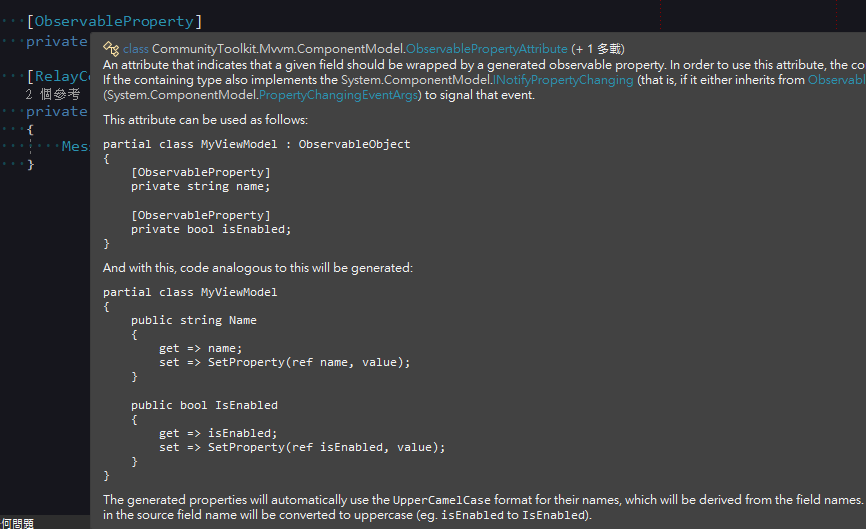
- Inherit from
ObservableObject. - Be declared as a
partialclass. - Use the
[ObservableProperty]attribute on fields (the Source Generator will automatically generate the corresponding Pascal Case property). - Use the
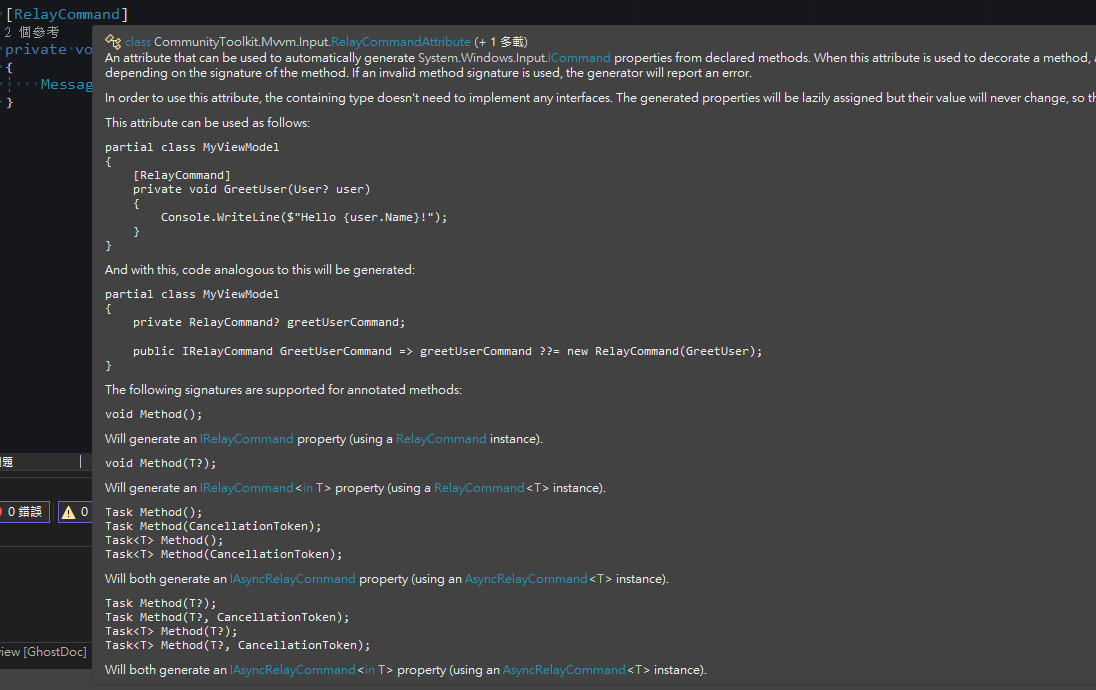
[RelayCommand]attribute on methods (the Source Generator will automatically generate the correspondingCommandproperty).
public partial class ViewModel : ObservableObject {
    [ObservableProperty]
    private string? input;

    [RelayCommand]
    private void Submit() {
        MessageBox.Show("Input value: " + Input);
        Input += "_Modified";
        MessageBox.Show("Changed value: " + Input);
    }
}
MainWindow Binding Configuration
When you encounter this issue: When performing data binding in XAML, failing to follow the automatically generated naming rules will result in binding failures.
Inject the ViewModel into the MainWindow constructor and set the DataContext:
public partial class MainWindow : Window {
    public MainWindow(ViewModel viewModel) {
        InitializeComponent();
        DataContext = viewModel;
    }
}In XAML, binding names must correspond to the results generated by the Source Generator:
TextBoxbinds toInput(corresponding to theinputfield).Buttonbinds toSubmitCommand(corresponding to theSubmitmethod).
<Window x:Class="WpfApp.MainWindow"
        xmlns="http://schemas.microsoft.com/winfx/2006/xaml/presentation"
        xmlns:x="http://schemas.microsoft.com/winfx/2006/xaml"
        mc:Ignorable="d"
        Title="MainWindow" Height="450" Width="800">
    <Grid>
        <TextBox Text="{Binding Input}"/>
        <Button Content="Submit" Command="{Binding SubmitCommand}"/>
    </Grid>
</Window>Execution Results
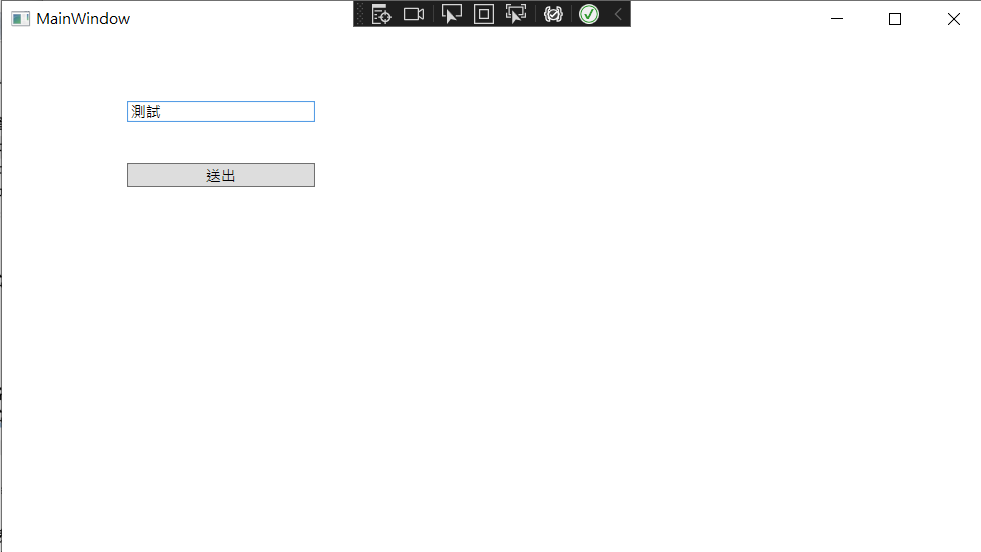
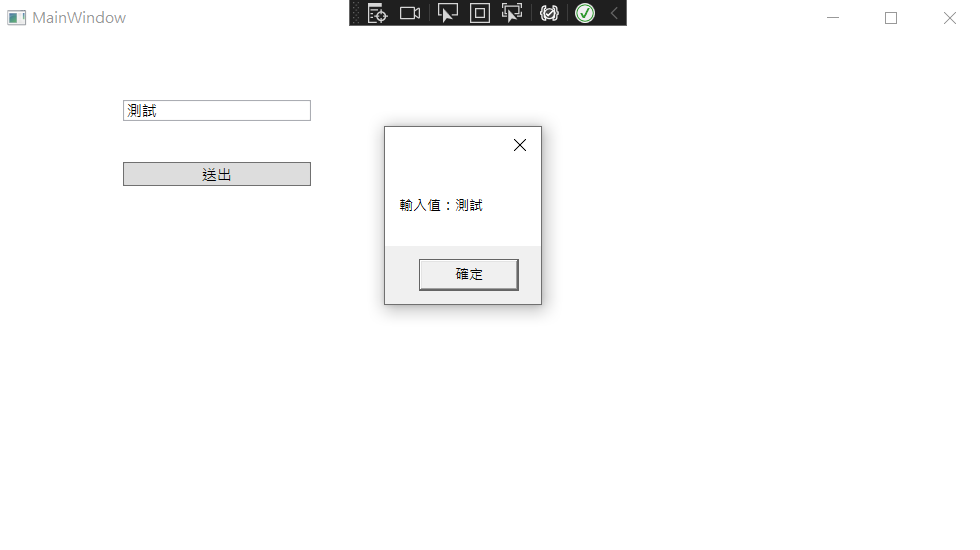
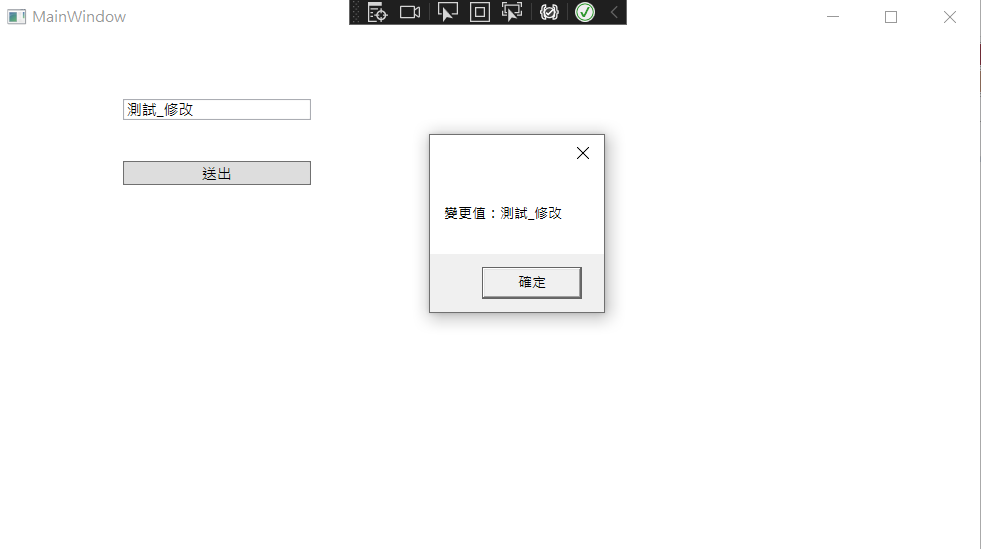
- After clicking "Submit", the
Submit()method executes successfully and retrieves theInputvalue. - When
Submit()modifies theInputproperty, theTextBoxon the UI updates automatically.
Change Log
- 2023-02-15 Initial documentation created.